
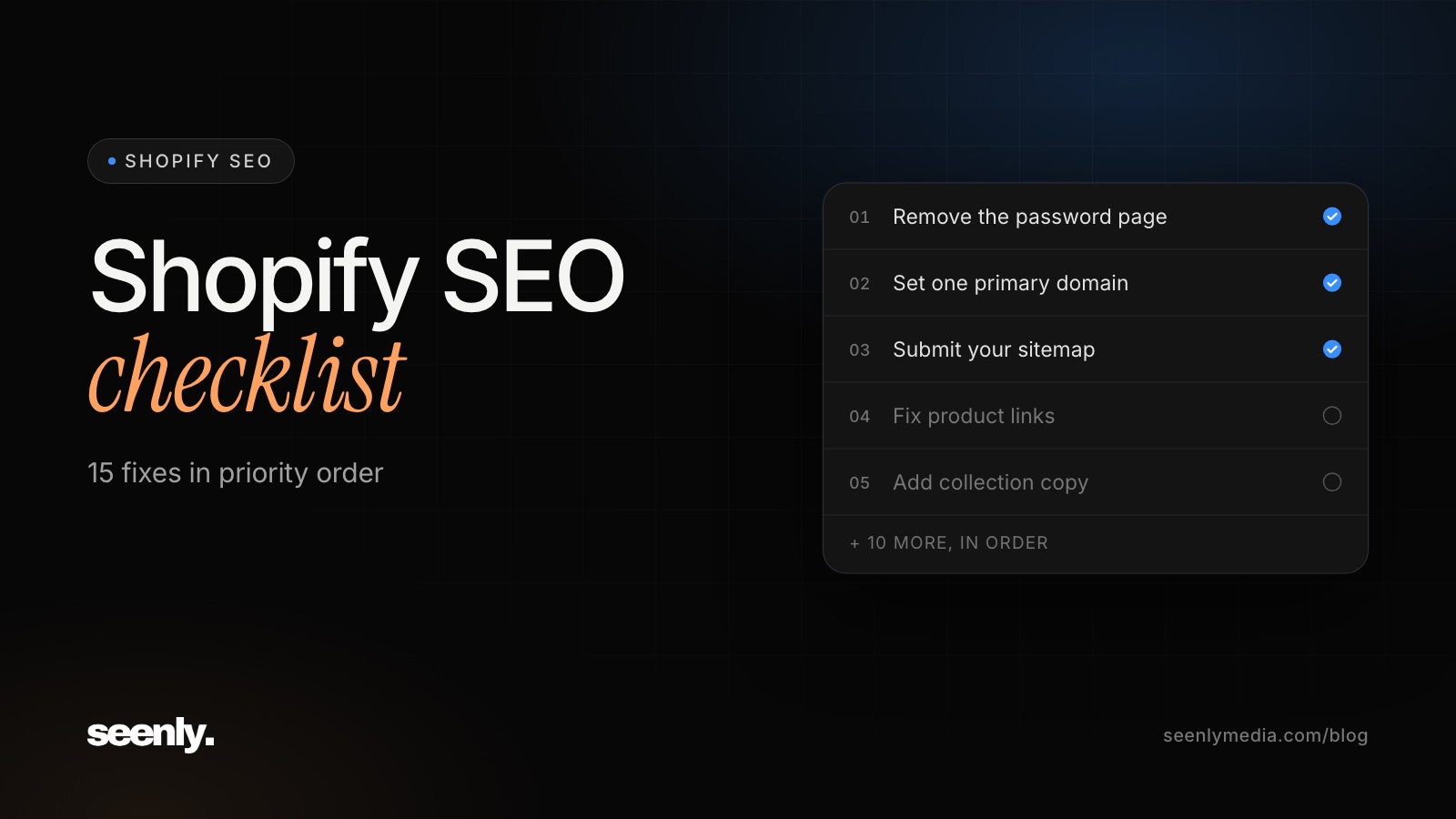
Most Shopify SEO checklists list 50 tips as if they all matter equally. They don't. Shopify already handles a lot for you, such as SSL, a sitemap, canonical tags, and a sensible robots.txt. The work that moves rankings is a shorter list, and the order matters. A great meta description can't help a store that is still behind a password page.
This Shopify SEO checklist covers the fixes that matter, in the order to do them. Work top to bottom. Each phase assumes the one before it is done.
New Shopify stores are password-protected until you launch. While the password is on, search engines can't see your products. In your admin, go to Online Store, then Preferences, and turn off password protection when you're ready to launch. If your store has been live for weeks with no traffic at all, check this first.
Your store is reachable at your custom domain and at its original myshopify.com address. In Settings, then Domains, make sure your custom domain is set as primary, so Shopify redirects the other versions to it. Then type the www and non-www versions into a browser and confirm they land on the same address.
Shopify creates your sitemap automatically at yourdomain.com/sitemap.xml and updates it as you add products. Verify your domain in Google Search Console, preferably with the DNS method so it covers every version of the domain, then submit the sitemap URL.
A week later, open the Page indexing report. Look for two things: important collections and products that aren't indexed, and URLs that are indexed but shouldn't be, such as tag pages or duplicate collection paths. Run any important page that's missing through the URL Inspection tool to see why.
Shopify can show the same product at two addresses: /products/product-name and /collections/collection-name/products/product-name. Shopify adds a canonical tag on the collection version that points to the /products/ URL, so Google knows which one is the main page. But if your theme links to the collection version from every collection grid, you send Google mixed signals across hundreds of links. Shopify's default theme, Dawn, links straight to /products/ URLs. If you use another theme, click a product from a collection page and check the address bar. If it includes /collections/, ask your theme developer to change the product links.
Depending on your theme, product tags can create filtered collection URLs, and blog tags create pages at /blogs/news/tagged/tag-name. Most of these are thin lists that overlap with your real collections. Keep them out of the index with a noindex rule in your theme, or with an SEO app that manages noindex settings. If a tag matches a real search, turn it into a proper collection instead.
When you delete a product, its page returns a 404 and any rankings or links it earned are lost. Set up a redirect to the closest replacement product or collection with Shopify's URL redirects tool, which you can find by searching "URL redirects" in your admin. When you change a product's URL handle, Shopify offers a checkbox to create the redirect for you. Always leave it ticked.
Shopify handles hosting and image delivery, so most speed problems come from what's been added on top. Google's Core Web Vitals targets are main content loading within 2.5 seconds, a response to taps within 200 milliseconds, and minimal layout shift. Shopify's web performance report in Analytics shows how real visitors experience your store. Fix in this order:
Collections usually target broader searches, like "barber clippers". Products target specific ones, like a brand and model name. Map one main keyword to each collection and to your top-selling products, and make sure no two pages target the same term.
Every product, collection, page, and blog post in Shopify has a Search engine listing section at the bottom of its editor. Click Edit to set the page title, meta description, and URL handle. Put the main keyword near the start of the title and keep it under about 60 characters. For the homepage, the title and meta description live in Online Store, then Preferences. Don't leave hundreds of products on the default title. Start with your top 20 by revenue.
Collection pages are where most Shopify search traffic lands, yet most are just a product grid with a title. Add a short description that says what's in the collection and who it's for. Most themes show the collection description above the grid. Many can also show extra content below the grid, which is a good place for buying advice and links to related collections without pushing products down the page.
If you use the supplier's description, your page says the same thing as every other store selling that product. Rewrite descriptions around what buyers ask before they purchase, and add descriptive alt text to every product image in the media editor. Our guide to SEO for product pages covers this step in detail.
Internal links tell Google which pages matter. Link related collections to each other, link from buying guides and blog posts to the collections they mention, and use your navigation to reach your most important collections within a click or two of the homepage. Products that only appear deep in pagination, with no other links, rarely rank.
Most current Shopify themes add Product structured data automatically, which can show price, availability, and reviews in search results. Test a product URL in Google's Rich Results Test. Watch for review or SEO apps that add a second Product block that conflicts with your theme's. You want one consistent block whose price and availability match the page. Google's Product structured data documentation lists what's required.
Once a month, open the Performance report and sort pages by clicks. Look for pages that dropped, and for queries where you rank in positions 5 to 15. Those are your fastest wins, because a better title, more collection copy, or a few internal links can push them onto page one. Re-check the Page indexing report after any theme change or big app install.
Yes. Shopify handles hosting, SSL, sitemaps, canonical tags, and a sensible robots.txt for you, which removes many common technical problems. The trade-offs are a fixed URL structure and the speed cost of apps. Most Shopify stores that don't rank have thin collection pages and copied product descriptions, not platform problems.
No. Shopify always uses /products/, /collections/, /pages/, and /blogs/ in URLs. That's fine for SEO. Google doesn't penalize these folders. Focus on short, descriptive handles after them.
Not for the basics. Shopify lets you edit titles, meta descriptions, handles, alt text, and redirects without one. An app helps with bulk edits, noindex rules for tag pages, and structured data fixes on larger stores. If you install one, check it doesn't slow the store down or duplicate your theme's structured data.
Fixes from Phases 1 and 2 can show in Search Console within a few weeks. Ranking gains for collections and products usually take three to six months, longer for new stores in competitive categories.
Phase 1 takes under an hour and catches the problems that block everything else. When you're ready to go deeper, our ecommerce technical SEO audit covers crawl waste, duplicates, and structured data in detail.
If you'd rather hand it off, see our SEO packages or book a call.